Quick jump |
The Query Designer allows you to use a simple graphical interface to construct SQL queries. The fields selected in the Output column are added to the SELECT clause.
Note: if you modify the default SQL query, make sure that the key column(s) are included in the field list. This is required to provide the edit/delete functionality.
If a table participates in a Master-Details relationship, make sure the link fields (primary/foreign key) stay on the list of fields.
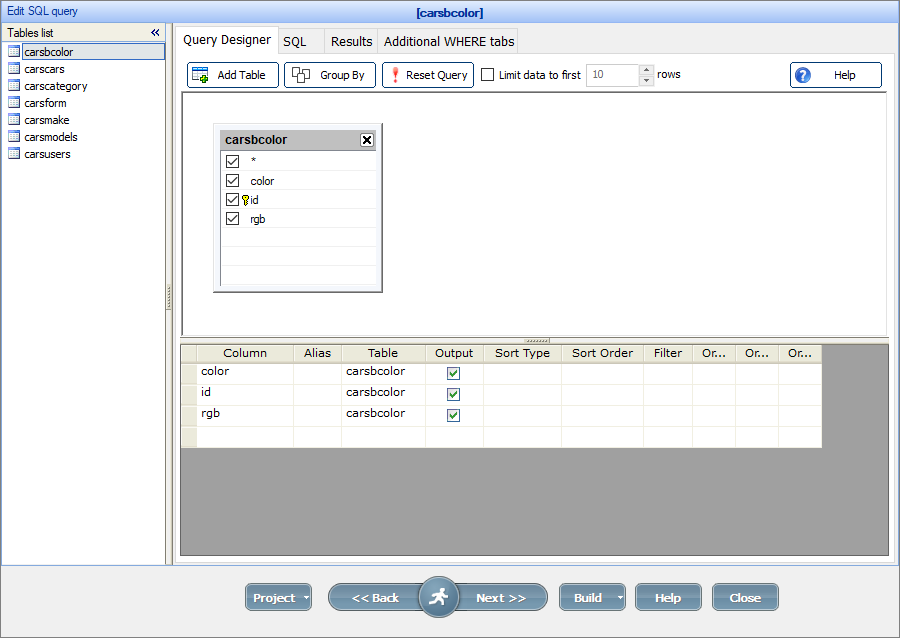
To switch between the tables, use the Tables list panel on the left.
This feature allows you to limit the number of records to be displayed on the List, Print, Export, Details pages. It can be useful if you need to speed up the loading of the webpage; or when your chart has too many items in it, and you need to show only the most significant ones. It also works with the List pages added to the Dashboard.
The search and filters are applied first, and then the results are limited to first "N" rows.
This option works with all PHPRunner project items except with the reports that have group fields selected.
When you connect to databases like DB2, Oracle or PostgreSQL, and your SQL query contains aliases, we recommend to enclose them in double-quotes. Here is an example:
select FieldName as "FieldAlias"
from TableName
If the field was assigned an alias in the SQL query, then the values array gets the alias instead of the field name from the database. E.g., if you have an SQL query SELECT salesrep_id AS Inv_Salesrep ..., you should use values("Inv_Salesrep").
Note: we do not recommend using aliases to give a field another name. If you have long or complicated field names, you can assign a label to the field on the Choose fields page or in the Label editor instead of using aliases.
To add a join, click the Add Table button, select the table, and then drag-n-drop the fields from the first table to the joined table.
Note: when dragging a field, other fields of the same type are highlighted in bold.
To set up the join clause type, double-click on the line between the tables, select the link fields in the Table link properties dialog for both tables, and choose the join type.
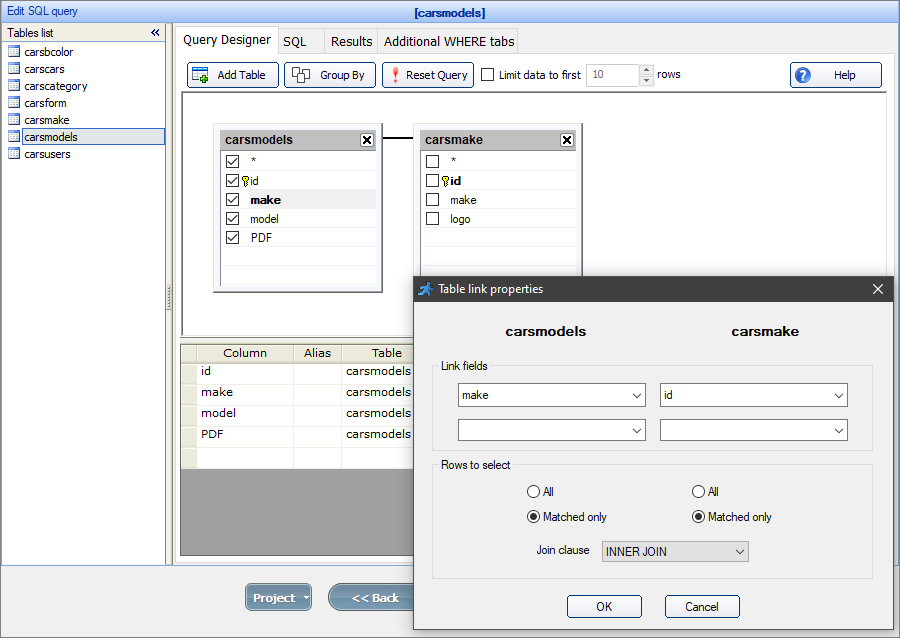
Note: to learn more about join types, see Using JOIN SQL queries.
SQL query:
SELECT
carsmodels.id,
carsmodels.model,
carsmodels.make
FROM carsmodels
INNER JOIN carsmake ON carsmodels.make = carsmake.id
Note: it's recommended to use aliases for fields from joined tables to avoid confusion when two fields from different tables have the same name.
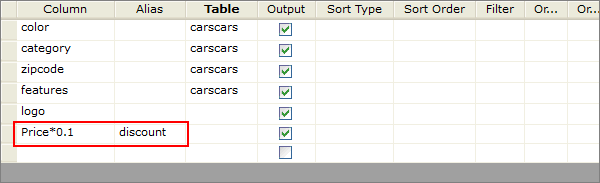
To add calculated fields, use the empty cells below the field names:
SQL query:
SELECT
category,
color,
Date Listed,
descr,
EPACity,
EPAHighway,
features,
UserID,
YearOfMake,
zipcode,
Price*0.1 AS Discount
FROM carscars
In the example above, the alias Discount is assigned to the calculated field Price*0.1.
Note: if the field was assigned an alias in the SQL query, then the values array gets the alias instead of the field name from the database. So you should use values["Discount"] instead of values["Price*0.1"] in your events.
For more information about events, see Events.
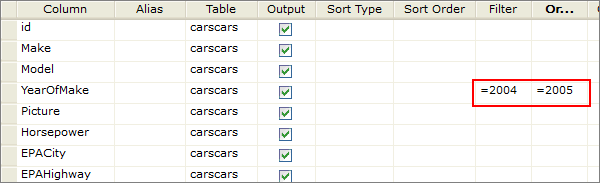
You can add a WHERE clause in the Filter column. If you need to add two or more conditions, use the Or... columns.
SQL query:
SELECT *
FROM carscars
WHERE YearOfMake =2004
For more complicated queries, wrap the condition with parentheses:
SELECT *
FROM carscars
WHERE ( YearOfMake =2004 OR YearOfMake =2005 )
If you'd like to specify the default sorting order on the List page (ascending or descending), select the Sort Type in the corresponding column for the necessary fields.
To add a GROUP BY clause, click the Group By button and select one of grouping function in the Group By column.
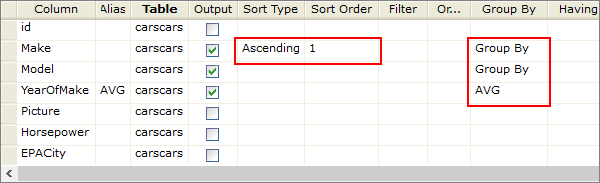
SQL query:
SELECT
Make,
Model,
AVG (YearOfMake)
FROM carscars
GROUP BY Make, Model
ORDER BY Make
•Stored procedure calls;
•Update/Delete/Insert/Create queries;
•Unions;
•DISTINCT keyword.
If you must to use one of queries that are not supported directly you can either create a SQL View or create a view/query right in your database and use this query as a datasource in PHPRunner.
Here is how you can create a query in MS Access (other database types provide similar options):
1. Run MS Access and create a new query. Switch to SQL view.
2. Insert your SQL query there.
3. Save this query as qryNewQuery.
4. Run PHPRunner and use qryNewQuery as a datasource table.
See also: